Website mockups, without the phone bezel.
A dashboard does not live on a phone. This puts your site on a Pro Display XDR, which is the widest screen in the set and the one that leaves the most room for the interface itself.
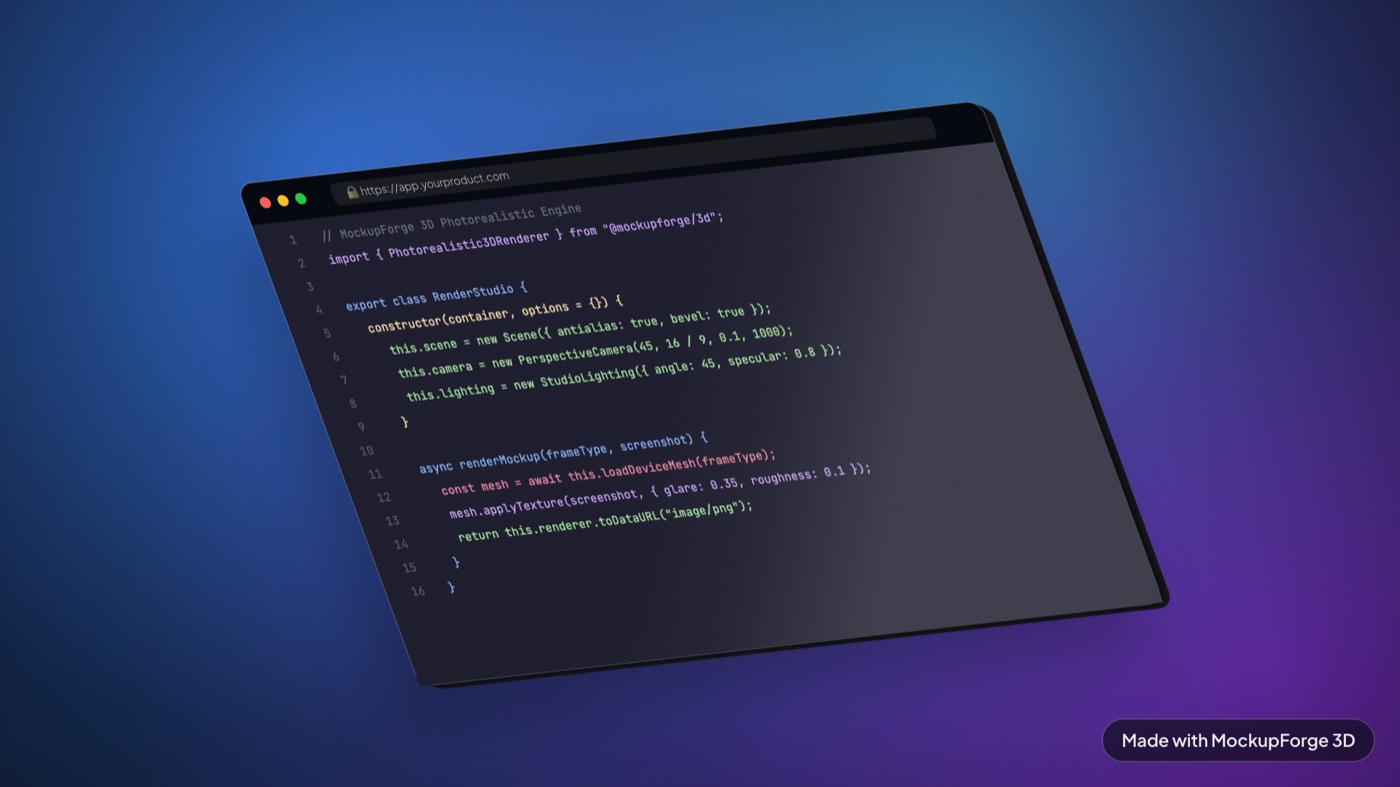
This used to be a drawn window. It is a real display now
Until July 2026 this frame was a hand-drawn browser window: a 2D canvas with a skew transform standing in for perspective and a painted side wall standing in for depth. It held up at gentle tilts and fell apart at hard ones, because a skew is not perspective and a painted wall is not geometry.
It has been replaced by an Apple Pro Display XDR, which is a real 3D model with real materials, lit by an image-based environment and photographed by a real perspective camera. Turn it as far as you like; the foreshortening, the reflections on the glass and the shadow underneath are all computed rather than faked, so nothing stops agreeing with itself at 40 degrees.
One thing genuinely went away with the old frame: there is no drawn address bar and no traffic-light buttons any more. If your shot needs visible browser chrome, put it in the screenshot itself before you upload it.
The screenshot size that fits
The panel measures 1.743 : 1, taken off the model's own screen mesh rather than off a spec sheet. That is a little wider than 16:9 and noticeably wider than the MacBook's 1.534 : 1, so a standard desktop grab lands on it with almost nothing cropped.
| What | Value |
|---|---|
| Screen aspect | 1.743 : 1 (landscape) |
| Panel resolution | 6016 x 3452 |
| Capture at | 1600 x 918, or 1920 x 1102 |
| A 16:9 grab | Fine. Roughly 2% cropped off the top and bottom |
| Texture resolution | Long edge pinned to 3200px |
| Export sizes | 1x, 2x or 4x PNG |
Decide about browser chrome before you capture. The display has a thin bezel and no drawn window frame of its own, so whatever you upload is what appears on the glass, edge to edge.
That cuts both ways. If you want tabs and an address bar in the shot, screenshot the whole browser window and they will render as part of the page. If you do not, capture the viewport only, or use the Chrome extension, which never includes the browser's own chrome.
Why a monitor and not a laptop
The MacBook is the other landscape frame, and it is the right one when the point you are making is that your product runs on a laptop. The display is the right one when the product is the point.
A 16 inch MacBook spends roughly half its silhouette on the base: keyboard, trackpad and the deck they sit in. That is a lot of aluminium competing with a dashboard for attention. The Pro Display is almost entirely screen on a thin stand, and it is wider, so the same screenshot lands bigger in the same frame.
Three moves
- Drop the screenshot in. Drag a PNG onto the Screen panel, or pick one of the four demo screens if you just want to see it work.
- Turn the display. Drag the canvas to rotate. This is a real model, so a hard angle holds up. Arrow keys nudge two degrees at a time, and
0resets the camera. - Export. Press
Efor a PNG orCto copy it straight to the clipboard.
When to use this instead of a phone
A phone or a tablet tells the viewer where your product runs. If that is the point you are making, use one. If it is not, a small portrait screen is the wrong shape for a desktop interface and you will spend the whole render fighting the crop.
In practice it wins for anything desktop-first: SaaS dashboards, admin panels, changelog posts, documentation screenshots, blog headers, and any before-and-after where the reader is meant to compare two layouts rather than admire a laptop. It loses for App Store listings, anything mobile, and any shot whose whole argument is that the product works on a phone.
What comes out
Three renders of the same display at different angles and backdrops, all exported straight from the tool. The screens are real sites, not placeholder art.
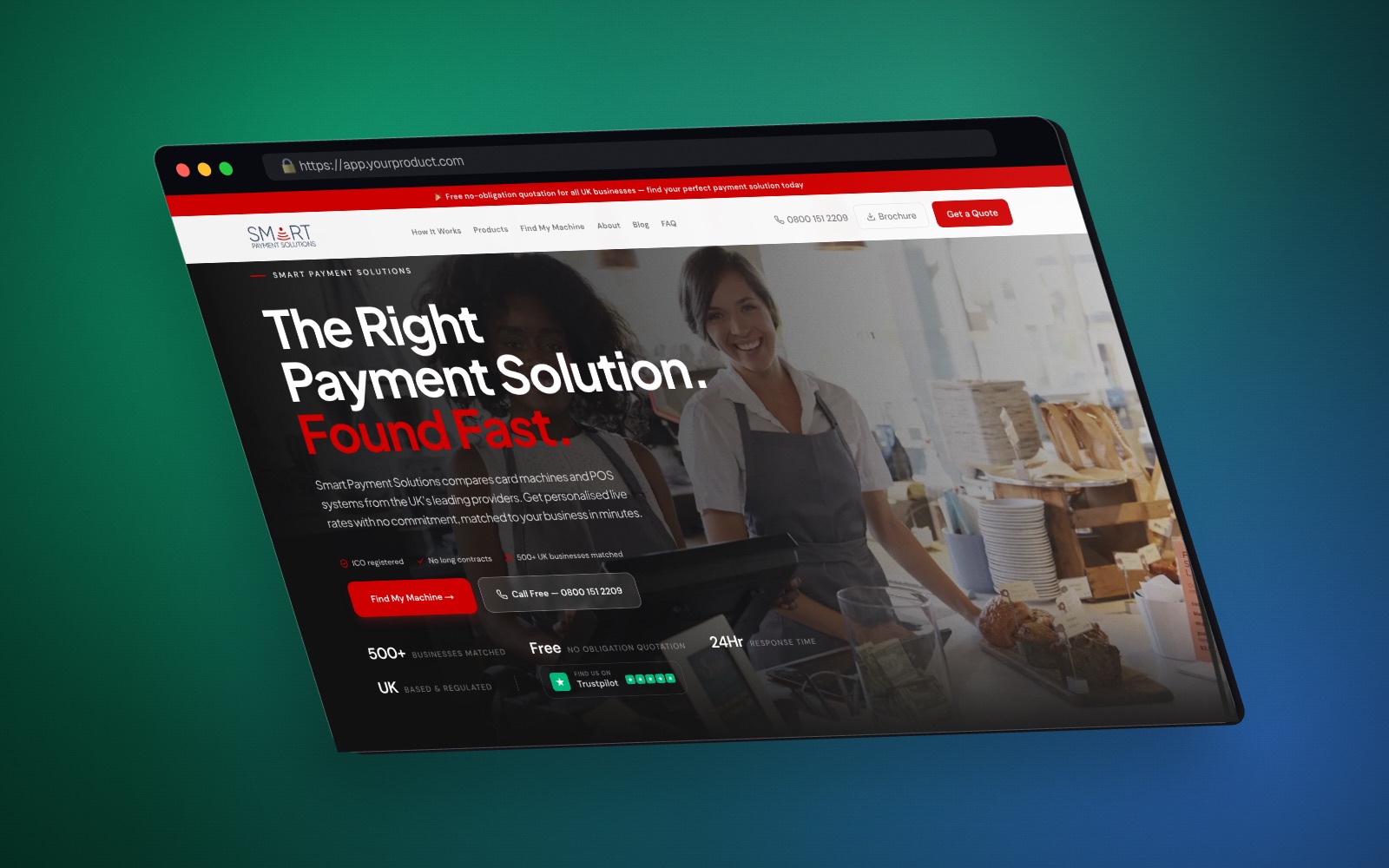
yaw -18, pitch 6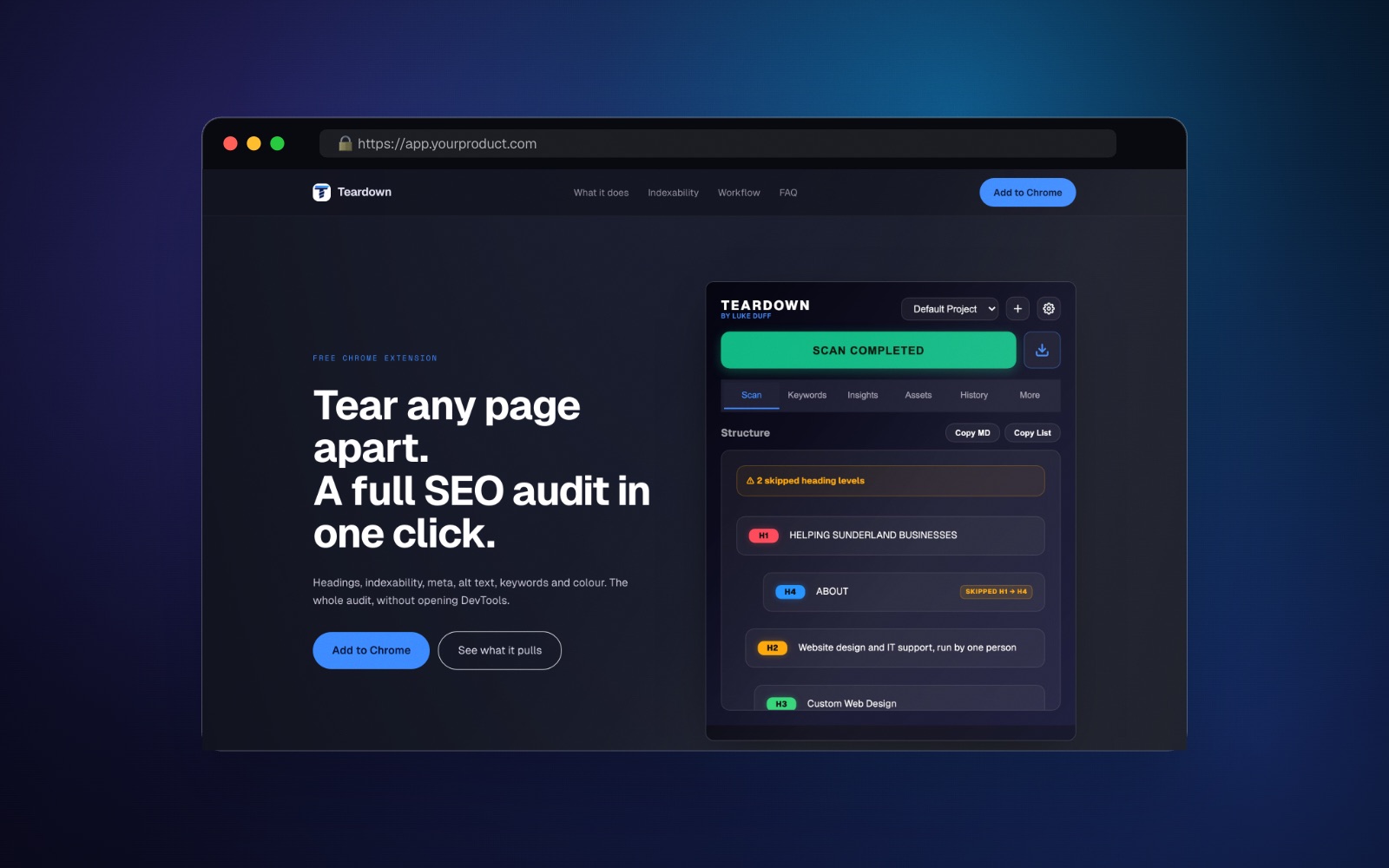
yaw 0, pitch 0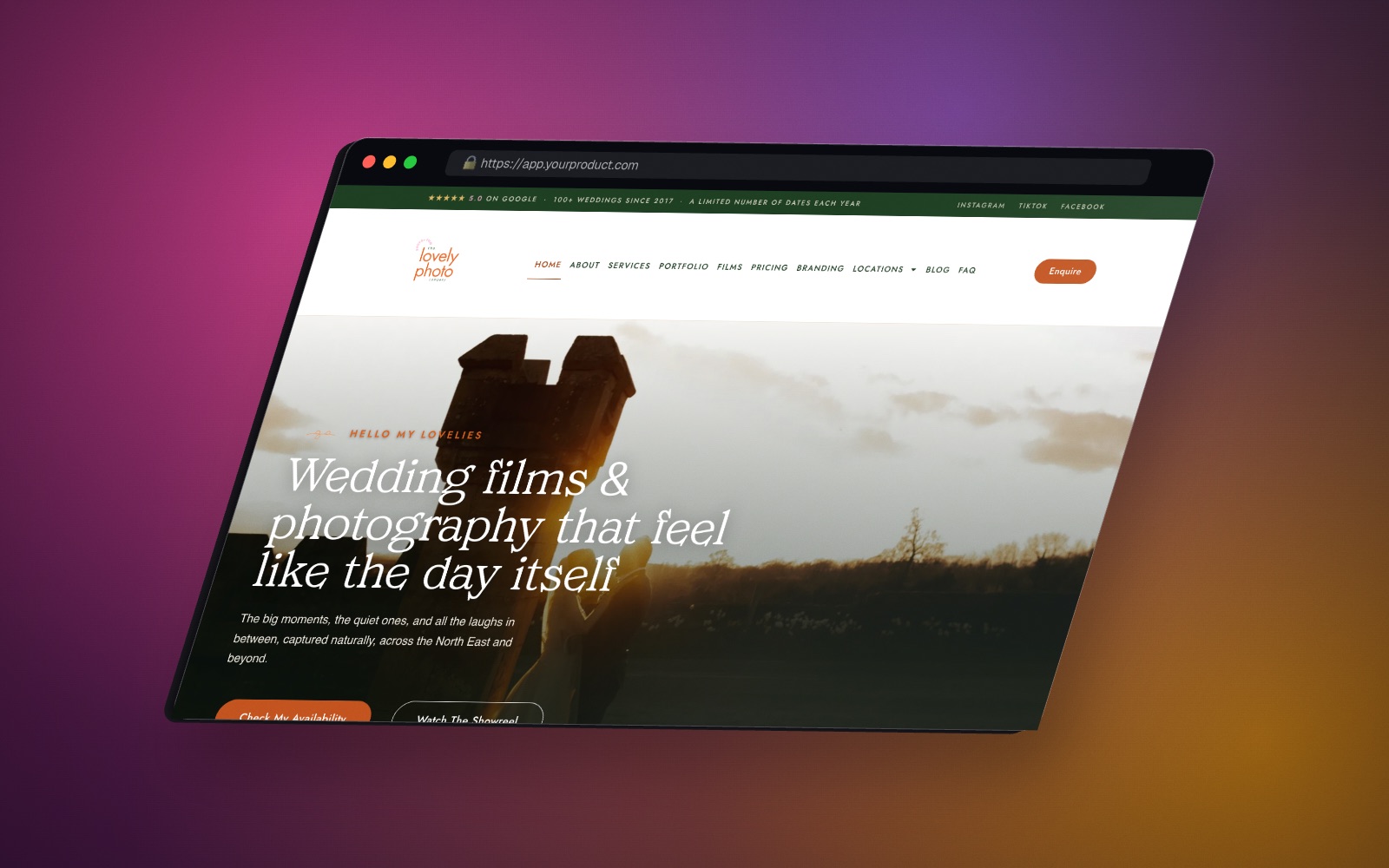
yaw 20, pitch 8, roll -2Where the render goes
Nowhere. The frame, the backdrop and the export all run in your browser on your own machine. There is no upload step and no account, and once the page has loaded you can disconnect from the internet and it still works. Closing the tab discards the screenshot. The privacy policy spells out the specifics.
The renders are yours to use commercially, client work included. The free tier bakes a small watermark into the exported file.