Capture the page you are already on.

A Chrome extension that screenshots the current tab, either as it is or through a real emulated phone viewport, and opens it in the studio ready to render.
Download the extension

Version 0.4.1 · 25 KB zip · Chrome, Edge, Brave and other Chromium browsers

Read this before you download: Chrome has blocked websites from installing extensions directly since 2014, so this is not a one-click install. You unzip the folder and load it yourself through Chrome's developer mode. It takes about a minute and the guide walks through every step.

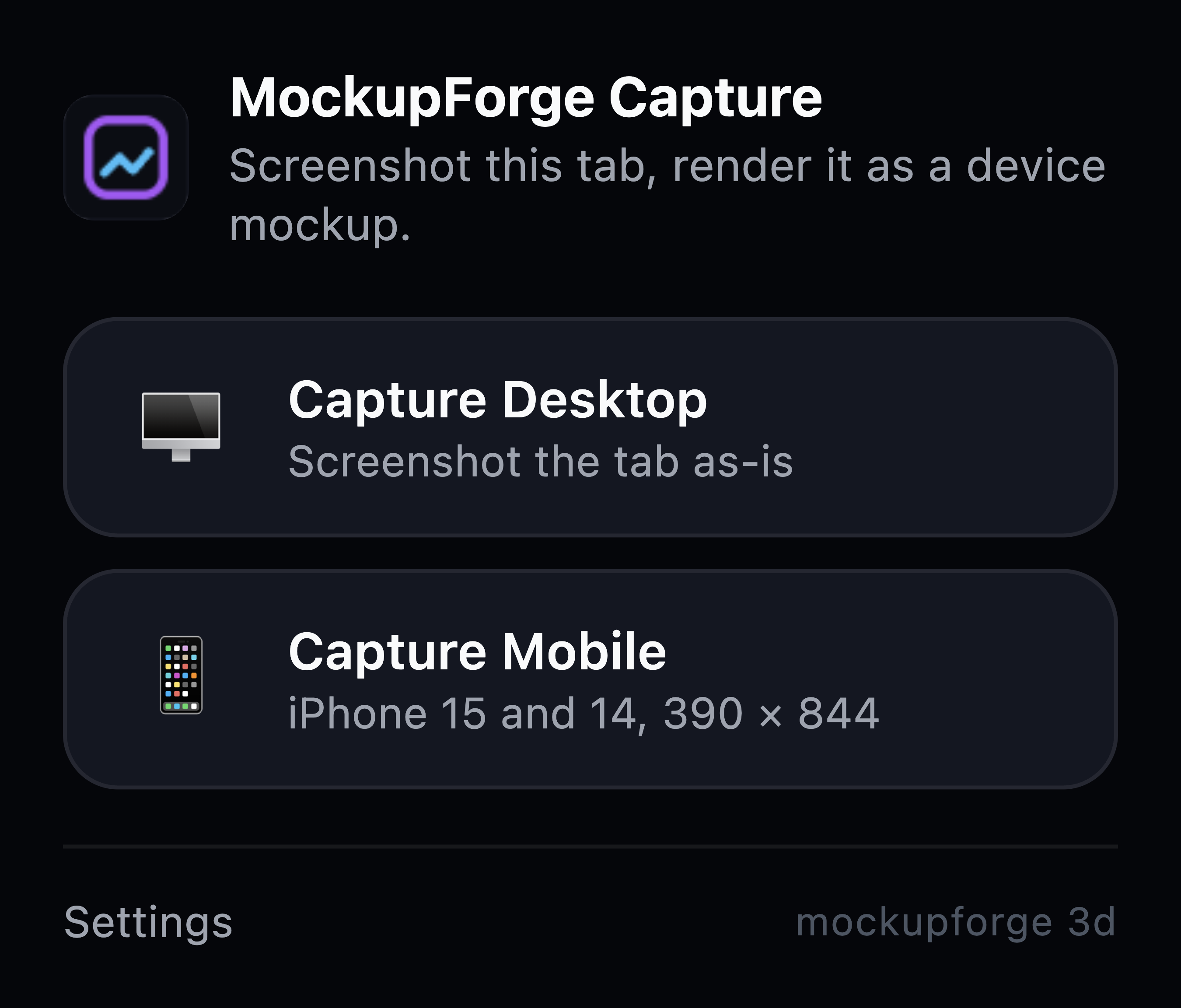
Two buttons. That is the whole interface.

Click the toolbar icon on any page and pick how you want it captured.

Capture Desktop

Screenshots the tab exactly as it is rendered on your screen, at your display's full pixel density. Best for dashboards, editors and anything wide.

Capture Mobile

Switches the page into a phone viewport first, then screenshots that. The site genuinely reflows to its mobile layout, so you get the real thing rather than a desktop shot squeezed into a phone frame.

  • iPhone 15 and 14, 390 by 844
  • iPhone 15 Pro Max, 430 by 932
  • iPhone SE, 375 by 667
  • Pixel 8, 412 by 915
  • iPad mini, 744 by 1133

Keyboard, if you prefer: CmdShift9 for desktop and CmdShift8 for mobile. Use Ctrl instead of Cmd on Windows and Linux.

It installs in developer mode.

Chrome only allows one-click installs from its own Web Store. Everything else, including this, is loaded by hand. That is a Chrome rule, not a sign something is wrong with the extension.

  1. Download and unzip

    You get a folder called mockupforge-capture. Keep it somewhere you will not delete by accident, because Chrome loads it from that location every time it starts.

  2. Open the extensions page

    Type chrome://extensions into the address bar. Chrome will not let a link take you there, so it has to be typed.

  3. Turn on developer mode

    The switch sits in the top right of that page.

  4. Load unpacked

    Click Load unpacked, choose the unzipped folder, and the extension appears in your list. Pin it to the toolbar from the puzzle piece icon so it is one click away.

Same steps, plus how to take your first capture.

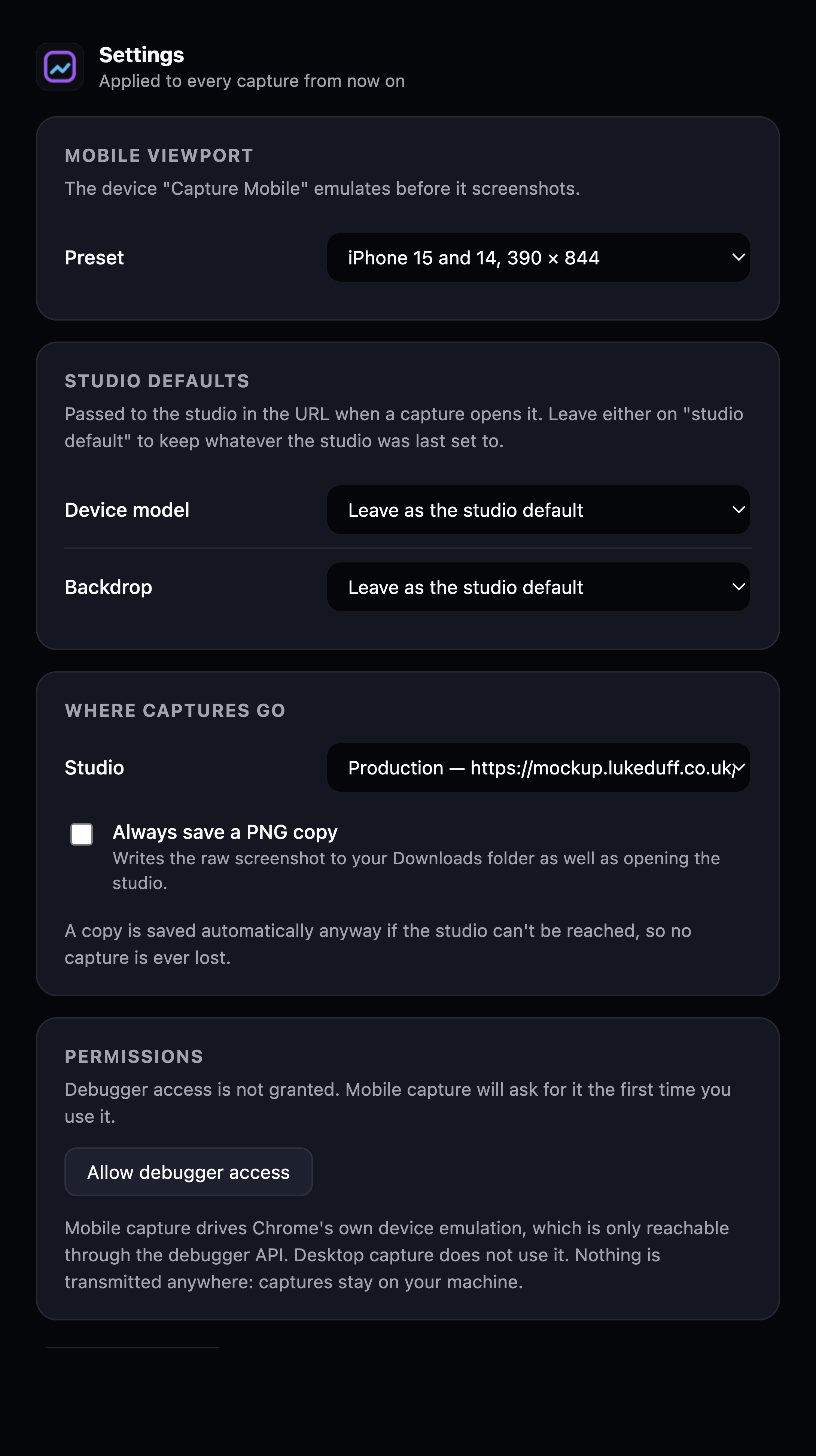
The extension settings page, showing a mobile viewport preset, studio defaults for device and backdrop, an option to always save a PNG copy, and a debugger permission control.
Settings, once it is installed. Pick a phone preset, pin a device and backdrop, or hand back the debugger permission.

It asks for four things and sends nothing anywhere.

There is no server, no account, no analytics and no network request of any kind in the extension. Your screenshot goes from Chrome into the studio tab on your own machine, and the studio renders it in your browser. The code is short enough to read in one sitting, and the zip contains nothing but the files listed on this page.

Every permission, and why.

Chrome shows these when you install. Here is what each one is actually for.

activeTab
Lets the extension screenshot the tab you are on, and only at the moment you click the button or press the shortcut. It has no access to any other tab and no standing access to this one.
storage
Holds your settings, and briefly holds the capture itself while the studio tab is opening. The capture is cleared the moment the studio confirms it loaded.
downloads
Only used as a safety net. If the studio cannot be reached, the screenshot is written to your downloads folder instead of being lost.
alarms
Sets the timer behind that safety net. Chrome shuts idle extensions down, and an alarm is the only thing that reliably survives it.
debugger
Mobile capture only. Chrome's device emulation is reachable only through the debugger interface, and Chrome does not allow this particular permission to be optional, so it is asked for at install rather than the first time you press Capture Mobile. It is attached only while a mobile capture runs, used only to set the phone viewport, and detached as soon as the screenshot is taken. Chrome shows a banner on the tab while it is in use. Desktop capture never touches it.

What it will not do.

Worth knowing before you install rather than after.

Free, like the rest of it.

Installing and using it

Install, once

  1. Download the zip and unzip it. Put the folder somewhere permanent, because Chrome reads it from that path on every launch.
  2. Type chrome://extensions in the address bar and press enter.
  3. Turn on Developer mode, top right.
  4. Click Load unpacked and select the unzipped folder.
  5. Click the puzzle piece icon in the toolbar and pin MockupForge Capture so it stays visible.

Take a capture

  1. Go to any normal web page.
  2. Click the MockupForge icon in the toolbar.
  3. Choose Capture Desktop for the page as it is, or Capture Mobile for a phone viewport.
  4. The studio opens in a new tab with your screenshot already on the device. Drag to rotate, then export.

The first mobile capture

Chrome will ask permission for debugger access the first time, because that is the only route to its device emulation. Allowing it is what makes the page reflow to a real mobile layout. Desktop capture never uses it, and you can withdraw it later in the extension's settings.

If nothing opens

The extension waits about half a minute for the studio to confirm it received the image. If it does not, your screenshot is saved to your downloads folder under mockupforge/ rather than being thrown away. You can drag that PNG into the studio by hand.