iPhone mockups, rendered in 3D.
Drop in a screenshot and it lands on a real iPhone model with a real camera and real lighting. Turn it to any angle and export at 4K. Free, and nothing is uploaded.
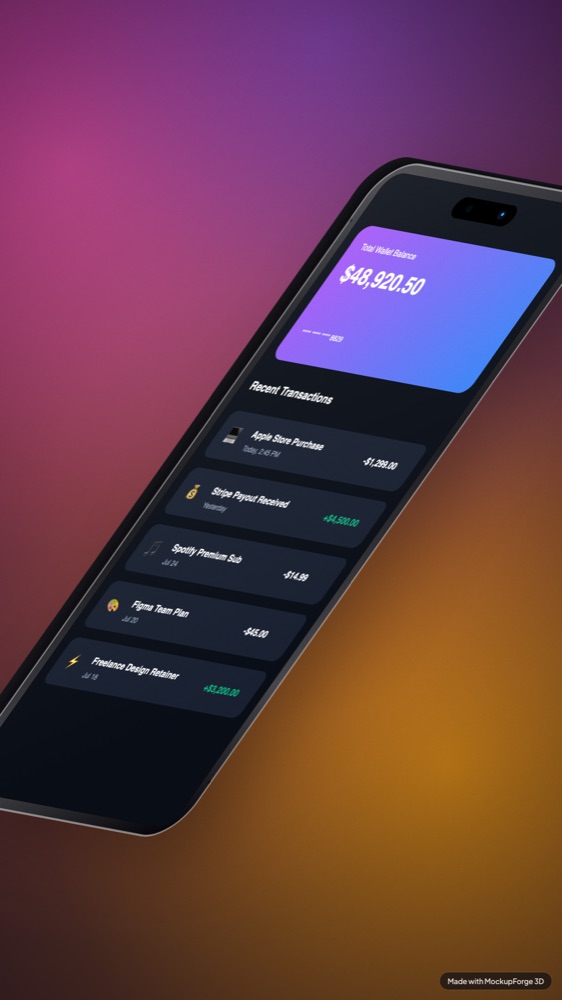
It is a 3D model, not a photo with a hole in it
Most free iPhone mockup generators composite your screenshot into a flat photograph of a phone. That works from exactly one angle, because the highlights and the shadow were baked in when the photo was taken. Tilt it and the lie shows.
This renders an actual iPhone 17 Pro Max model in WebGL, lit by an image-based environment, with a camera that orbits the whole scene. When you turn the phone the perspective, the specular highlights on the glass and the contact shadow underneath all update together, because they are being computed rather than recalled.
The screenshot size that fits
The iPhone's screen in this tool is 1320 by 2856 units, so its aspect
is almost exactly 1 : 2.16. Fit mode defaults to cover,
which fills the glass and crops whatever does not fit rather than letterboxing it.
The top of your capture is never lost to the camera cutout: the studio reserves an
iOS-style status strip, fills it with your page's own header colour — exactly what
a real iPhone renders behind the status bar — and starts the screenshot below it,
so any overflow comes off the bottom, never the header.
| What | Value |
|---|---|
| Screen aspect | 1 : 2.16 (portrait) |
| Status strip | Top 8.5% of the glass, filled with your page's own top colour |
| Capture at | 390 x 844, or any portrait phone viewport |
| Texture resolution | Long edge pinned to 3200px |
| If you use a desktop grab | It is centre-cropped to a tall strip |
| Export sizes | 1x, 2x or 4x PNG |
Capture in portrait, not desktop. This is the one mistake that costs a re-render. A 1440 by 900 desktop screenshot on a 1 : 2.16 screen gets cover-cropped to a narrow vertical slice out of the middle, so the nav, the edges of the layout and usually the whole headline disappear.
Resize your browser window to a phone width first, or use your browser's device toolbar. The Chrome extension has a Capture Mobile button that switches the page into a real phone viewport, shoots it, and sends it here already set to the iPhone.
Three moves
- Drop the screenshot in. Drag a PNG onto the Screen panel, or pick one of the four demo screens if you just want to see it work.
- Turn the phone. Drag the canvas to rotate. Arrow keys nudge two degrees at a time when you want a specific angle, and
0resets the camera. - Export. Press
Efor a PNG orCto copy it straight to the clipboard. 4x gives you 7680 by 4320.
What you can change
Fourteen sliders, and they all update the canvas while you drag. Yaw, pitch and roll for the angle. Screen zoom and offset for framing the screenshot inside the glass. Glare, shadow, grain and device colour for the finish. Six mesh-gradient backdrops are built in, or you can drop your own image in behind it.
Anything you build can be saved as a look and applied to the next screenshot, which is the part that matters if you are producing a set of App Store shots rather than one image.
What comes out
Three renders of the same model at different angles and backdrops, all exported straight from the tool. The screens are real sites, not placeholder art.
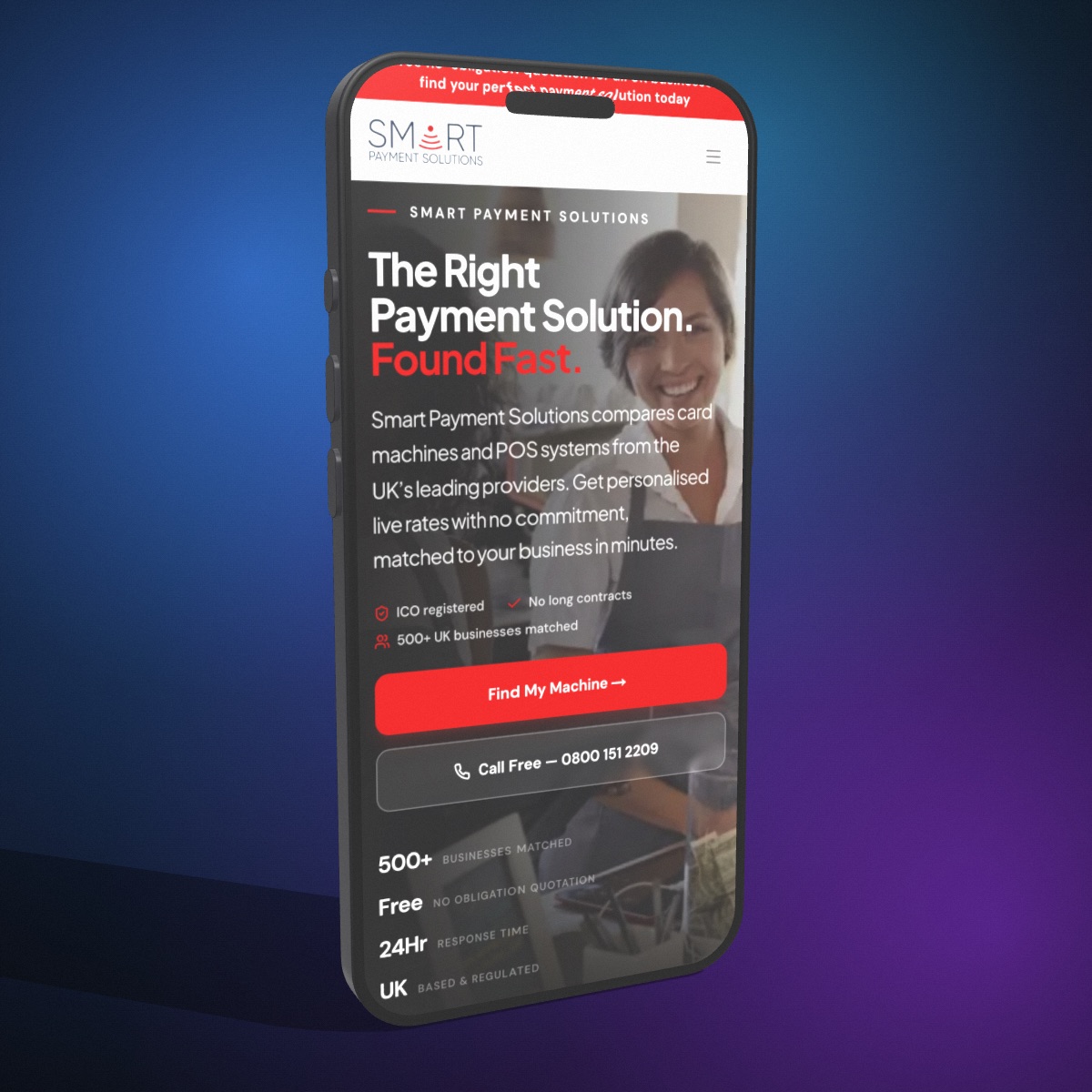
yaw -24, pitch 8
yaw 0, pitch 0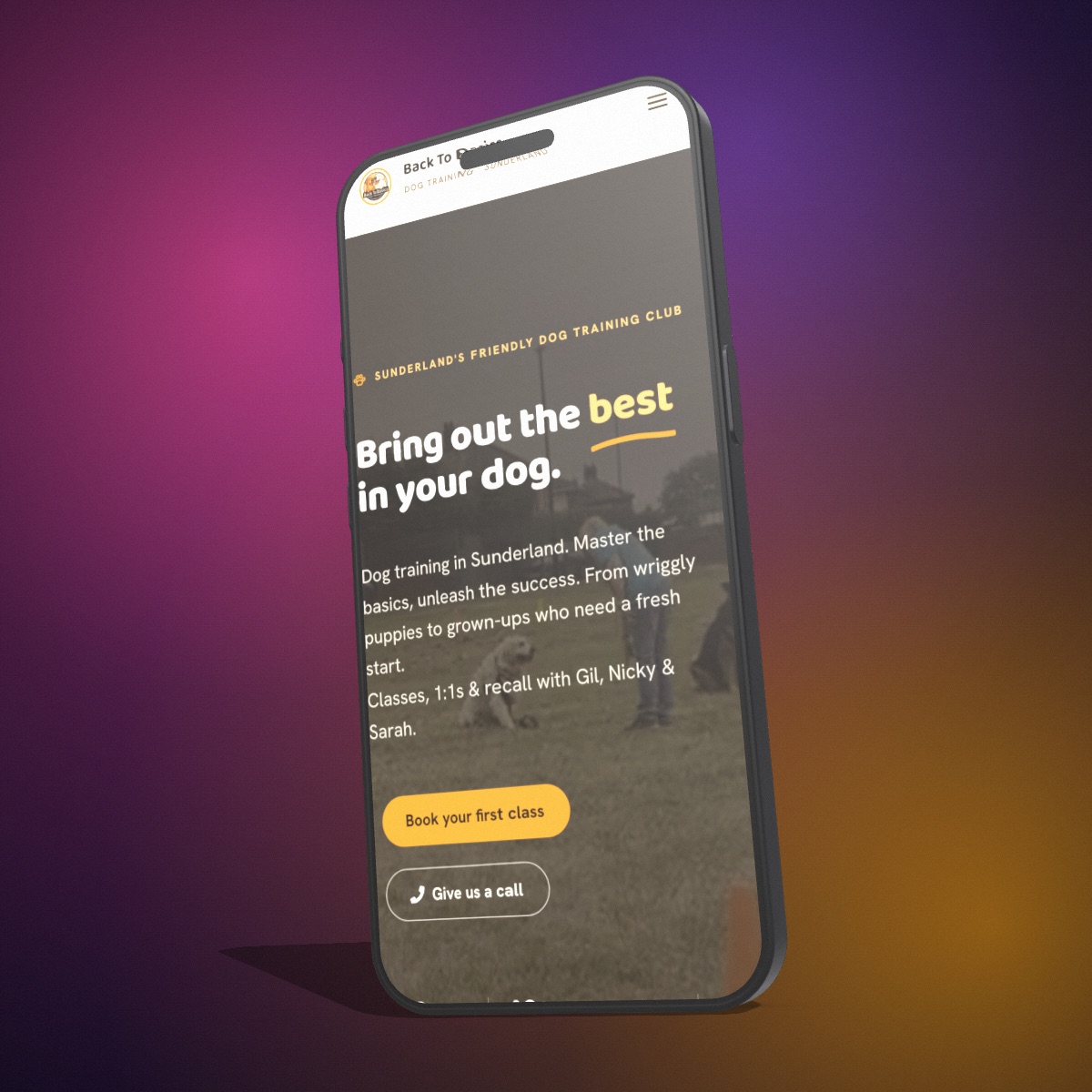
yaw 26, pitch -10, roll -4Where the render goes
Nowhere. The model, the lighting and the export all run in your browser on your own machine. There is no upload step and no account, and once the page has loaded you can disconnect from the internet and it still works. Closing the tab discards the screenshot. The privacy policy spells out the specifics.
The renders are yours to use commercially, client work included. The free tier bakes a small watermark into the exported file.